Author Archives: stephen123008
Getting Started In Visual Basics
Visual Basics is probably the most easiest coding language ever made because it is so simple to learn and use.
Here is how to start
Download Visual Basics 2010
Free download here
When it is downloaded; open it and it should look like this
Click on the new project button

When you have clicked that this menu will show up
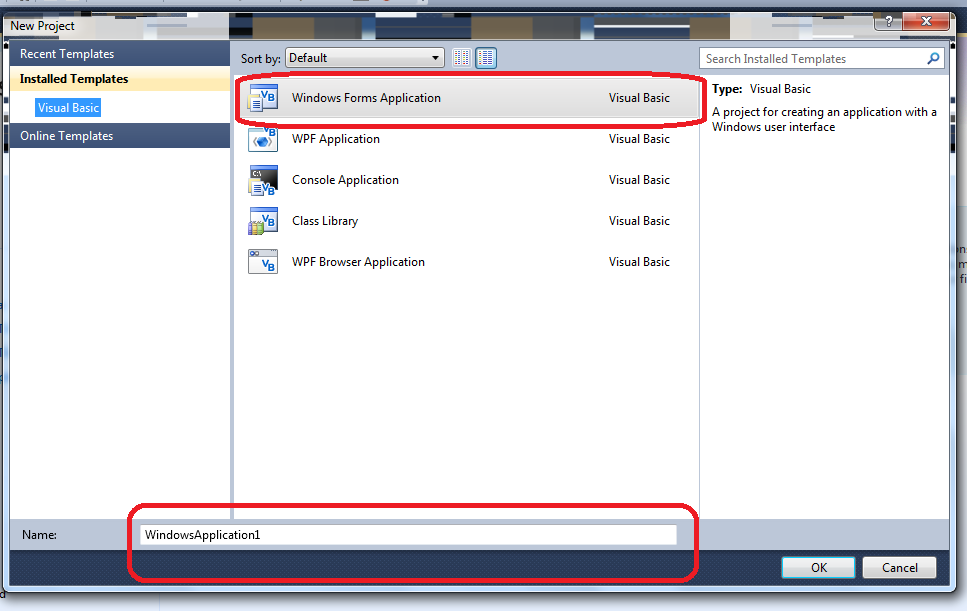
Make sure you click on “Windows Form Application” and name it what ever you want it to be
When you have done that this will come up

On the left is the toolbox this will contain all the items you will need to make an application (buttons,textbox,labels)
On the right is the properties box where you can change everything from color to size and text.
To put an item onto your form (your application) drag it on to your form.
Because you are new we are going to start with some simple code.
on the left look for a button and a label and drag them into the form. Like this
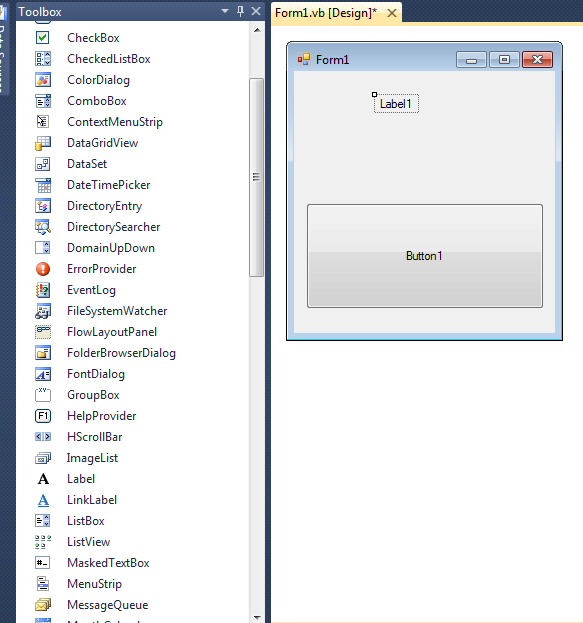
click on the label and look in the properties (on the right) and look for “font” and click on the button with the dots on, and the next menu that will show up will be the font menu, so chose the font and size you want.
When you have changed the font press “Ok” on the font menu and it will take you back to the form.
Then double click on the button and right this code (you can copy and paste it but it is best not to so you will learn it)
label1.text = (“put your text here”)
Now when you have clicked the button the labels text will change to what you want it to be.
In lesson 2 we will be looking at more advanced codes.
How To Spice Up Your Applications In Visual Basic
When you make applications in visual basic, you would find that the buttons look a bit dull and boring which would make your application look unprofessional.
Krypton Toolkit contains professional looking buttons, combo boxs, check boxs and it even comes with a ribbon (what microsoft use for there programs to make them look professional)
What You Need
Visual Basic 2008 or 2010 (works best)
Krypton Toolkit Download It Free Here
First what you need to do is download Krypton Toolkit
Free Download Link Here
Add A Tab
Click on the empty open space and click on Add Tab and call it Kryton (or what ever you want it to be called)

Inserting The Files To Visual Basic
Then go to your documents and go to My Computer>Local Disk>Program Files>Component Factory>Krypton Toolkit>Bin and then drag all the files that have .dll at the end of them and drag them to your tab you made.

drag all of the .dll files into your new tab you made called krypton
Now you will have some good looking items to use in your application.
Examples
Here is some of the items you will get

To change the button styles click on the krypton button and click on the white arrow and it will come up with a menu And a box will show up, click on the palette box and a menu will show all the styles.

 Visual Basic Tutorials